Browse the docs
Documentation
Get to know your desk.
Find a panel, learn its commands and understand its data. Start with the essentials, or go straight to the module you need.
most used
Start here
The six the terminal puts up front — each one links to its full page.
CHChart
TradingView-powered charting, linked to every panel.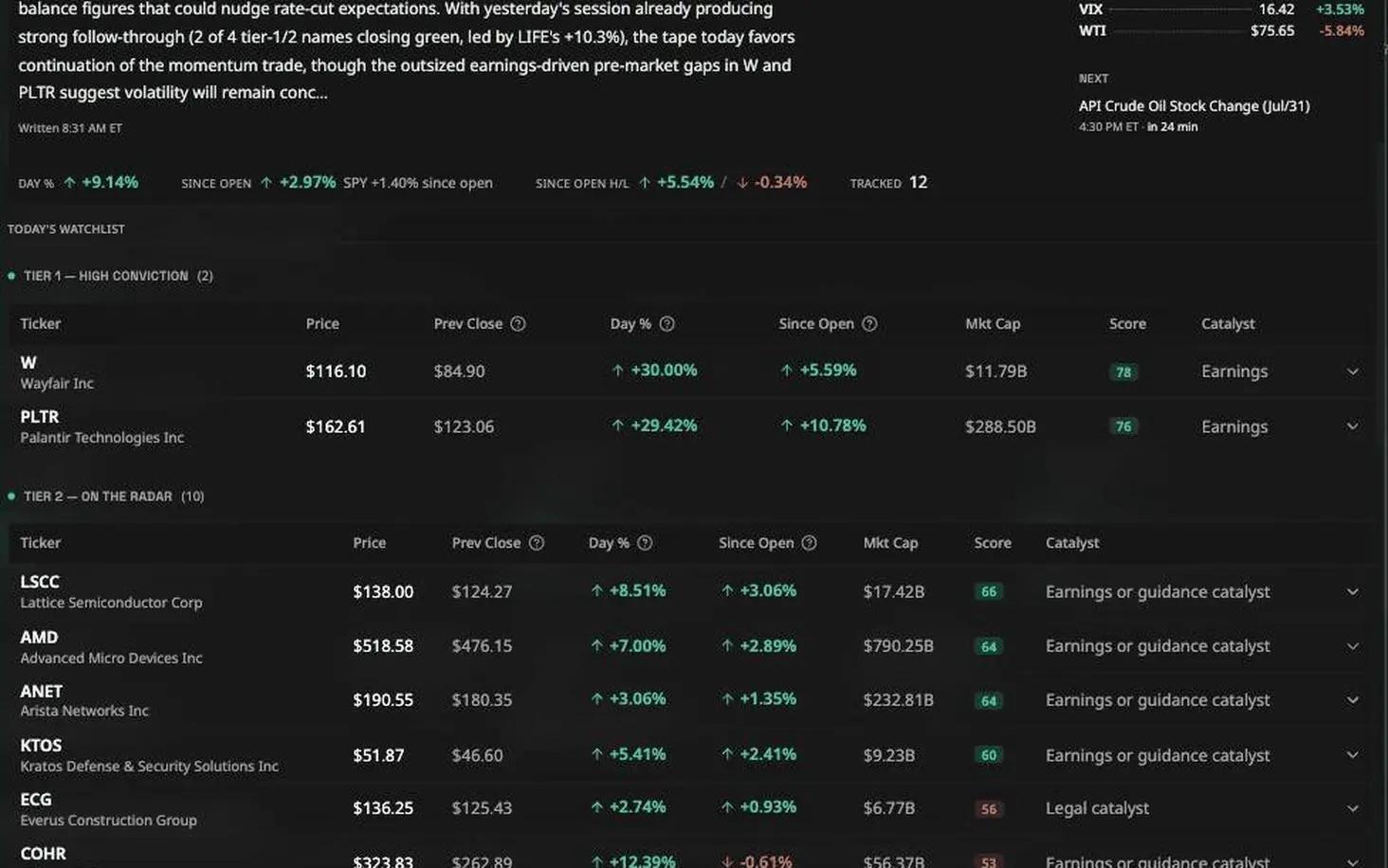
PMPre-Market Board
A ranked pre-open board of the morning’s gappers and watch candidates.SCANEquity Screener
Filter the equity universe down to your setups.WLWatchlist
A compact live table of the symbols you track — saved lists, or a quick list kept on the window.DESCompany Profile
One company in one window — the snapshot, and every view of it as a tab.AIHootAI
An AI that answers with live data and drives the workspace.command reference
Every command
Type the shortcode into the palette. Click any row for its full page.
Market
- CHChart
- NNews
- NRNews Reader
- MOSTMovers
- FUTFutures & Markets
- PULSEMarket Pulse5 views
- PMPre-Market Board
- OPTOptions Chainsoon
- HMAPMarket Heatmapsoon
- TASTime & Salessoon
views inside PULSEECON IndicatorsPERF PerformanceTSY TreasuriesHYD High YieldMRP Risk Premium
Research
views inside RESRPT ReportPLAN Trade Plan
Company
views inside DESVC Value chainRAT RatiosFA FinancialsERN EarningsDVD DividendsTRANS CallsEVT EventsINS OwnershipCG CongressFIL SEC filingsESG ESG
Calendars
views inside CALECO Economic CalendarEARN Earnings CalendarDIV Dividend CalendarSPLIT Split CalendarIPO IPO Calendar
AI & Alerts
Trading & Portfolio
The next pillar of the terminal — none of these exist yet.
- PORTPortfolio Trackingsoon
- PAPERPaper Tradingsoon
- REBALPortfolio Rebalancingsoon
- TRADELive Tradingsoon
keyboard shortcuts
Every shortcut that works inside the terminal
The same table lives in the product under HELP — this is the public mirror.
| Mac | Windows | Action |
|---|---|---|
| ` | ` | Opens the finder — a ticker, a panel, a tab or a command |
| ⌘ K | Ctrl + K | Opens the finder |
| Enter (in the finder) | Enter (in the finder) | Runs the highlighted row — the foot of the finder says what it will do |
| Esc (while dragging) | Esc (while dragging) | Cancels the drag or resize — every window snaps back to where it started, and nothing closes |
| Esc (double tap) | Esc (double tap) | Closes the selected windows (all of a multi-selection) or the focused window |
| T | T | Tidy — re-grids every window and spreads the desk to the canvas edges, resizing as it goes. Pinned windows are left exactly where they are |
| P | P | Toggles Fluid mode (drop into a gap to fill it; onto a window to swap when nothing fits) |
| R | R | Opens Research, ready to type a ticker |
| A | A | Opens the HootAI chat (focuses the composer, ready to type) |
| G | G | Align — push the selected window (or the focused one) into any corner, edge, or the centre of the canvas with a nine-square pad, and line a multi-selection up with itself: shared edges, shared centre lines, even spacing, matched sizes. G again closes it. Fully keyboard-driven: it opens with the cursor on the middle of the pad, arrow keys walk every control, and Enter fires the one you are on. Stays open while you click from window to window |
| E | E | Exposé — overview of all open windows (click one to focus; E or Esc exits) |
| W | W | Opens the finder on what is open — this desk first, then the other desks; Enter brings a panel forward, restoring it if it was minimized |
| M | M | Opens the panel list beside the rail — every panel by category, to add one (the rail's +) |
| F | F | Fills the focused window into the adjacent empty space |
| L | L | Opens Layouts — starter layouts and your saved ones, drawn as their panels; Enter opens one as a new desk, Shift+Enter replaces this desk, F2 renames a saved one |
| B | B | Opens the Pre-Market Board (tiers, catalysts, morning brief) |
| S | S | Edits the focused window's ticker (symbol windows — same as clicking it) |
| X | X | Switches extended hours on and off — the EXT chip in the header |
| H | H | Opens the help window (F1 works too, on keyboards that send it) |
| I | I | Shows or hides the Guide docked beside the canvas — a course on using the terminal, the lesson you are on, and the keystroke table |
| 1–9 | 1–9 | Switches the focused window's tabs — tab strips and pickers show their digit; inside an open picker, digits choose an option (arrows and Esc as usual) |
| ⌘ C · ⌘ V | Ctrl + C · Ctrl + V | Copies the focused window and pastes a twin the same size, seated right beside it, pinned to its own ticker with the ticker field already open to retype (⌘C still copies selected text when there is a selection) |
| ⌘ S | Ctrl + S | Saves the loaded layout in place (opens Save as… when none is loaded) |
| Shift ⌘ S | Shift Ctrl + S | Save as… — saves the arrangement under a new name |
| ⌘ Z | Ctrl + Z | Undo the last layout change |
| ⌘ Shift Z | Ctrl + Shift Z | Redo the last undone layout change |
| ⌘ B | Ctrl + B | Expands or collapses the left rail |
| ⌘ \ | Ctrl + \ | Splits the focused HootAI panel so a second conversation sits beside the first — press again to close it. Works while you are typing in the composer |
| ⌘ ⇧ O | Ctrl + Shift + O | Opens the focused panel in its own window, which you can drag to another screen, maximize or snap. Press again — or close the window — to bring it back |
| Shift / ⌘ click | Shift / Ctrl click | Adds a window to the selection (drag any to move them together) |
| Shift + click a headline | Shift + click a headline | Opens that story in a SECOND News Reader instead of reusing the one you already have — the way to read two stories side by side. A plain click always reuses a single reader, so working down a feed never buries the desk. (On a window's title bar or frame, Shift-click still means "add to the selection" — this is rows only.) |
| Double-click title bar | Double-click title bar | Maximizes the window — double-click again to restore it |
| Option + double-click title bar | Alt + double-click title bar | Selects the whole column (drag to reorder it) |
| Drag empty canvas | Drag empty canvas | Rubber-band selects the windows it covers |
| Tab | Tab | Moves through the controls on the desk like any web page — into the focused panel first; every panel is a labelled group, so a screen reader names it as you land |
| Shift + Tab | Shift + Tab | Moves back through the controls |
| Option + Shift + 1…9 | Alt + Shift + 1…9 | Jumps straight to that panel on this desk — each window shows its number in its title bar's tooltip, and a minimized one is restored. Numbering is stable: it only changes when you open or close a panel, never as you move, minimize, or click between them |
| Option + 1…5 | Alt + 1…5 | Switches to that desk (in desk-row order) |
| Option + [ · Option + ] | Alt + [ · Alt + ] | Previous / next desk (wraps around) |
| Arrow Key | Arrow Key | Moves the active window a step at a time, stopping on the first alignment it would cross — any window's edge (not just one in its path), the canvas edge, or the canvas centre — with a guide drawn to show what it caught. Press again from the stop to carry on past it. Against the edge of the screen it starts shrinking from the trailing edge instead |
| Shift + Arrow Key | Shift + Arrow Key | Resizes the active window — right and down grow it, left and up shrink it, anchored at its top-left corner. The moving edge stops on the first neighbour edge it would cross, so a window can be squared up with the one above it without the mouse. Hold the key to keep going; the whole run undoes as one step |
| Control + Shift + Arrow Key | Control + Shift + Arrow Key | Snaps the active window to the edge of the screen |
| Option + Arrow Key | Alt + Arrow Key | Moves the active window in fine 16px steps with SNAPPING OFF — the escape hatch for putting a window exactly where you want it rather than where the alignments suggest. Same meaning as holding it during a mouse drag |
| Option + Shift + Arrow Key | Alt + Shift + Arrow Key | Changes the size of the active window to the edge of the screen |
| Hold Option while dragging | Hold Alt while dragging | Temporarily disables snapping |
| Hold Shift / ⌘ while dragging | Hold Shift / Ctrl while dragging | Temporarily disables Fluid mode (free drag) |
getting started
How the workspace works
Find anything
The finder finds a ticker, a panel, a tab or a command — and lists what is open on this desk and the others, so it is also how you jump between panels. Press ⌘ K (Ctrl+K on Windows) or the ` key to open it; W opens it on what is open. To add a panel, the rail's + (or M) opens the panel list beside the rail instead — every panel by category, each with a line saying what it is. Type a ticker, a panel's name or its code (WL, CH, DES…), a tab code (EARN opens the Calendar on its Earnings tab) or a command such as Save layout as, and Enter opens the first result. A bare ticker opens the Company Profile on that symbol — or retargets the one you have — and moves lane A with it, so every panel on A follows. "NVDA B" sends the ticker to lane B instead. "NVDA CH" opens a Chart on NVDA in lane A, "NVDA CH B" the same in lane B, and "NVDA CH PIN" an Independent Chart on NVDA that no lane can move ("NVDA PIN" does it for the profile). While the finder is open, the four chips under the line — A, B, C and PIN — or Option 1 / 2 / 3 / 4 write that scope onto whatever you typed, so "NVDA QT" becomes "NVDA QT B". Clicking a ticker in any table opens the Company Profile on that symbol. Star a panel to keep it on the rail as a launcher — with the star on its own title bar, beside it in the panel list, or on its row in the finder. Drag a rail entry up or down to set the order (Option + ↑ / ↓ does the same from the keyboard).
Lanes
Panels on the same lane share a ticker. There are three lanes — A is yellow, B is blue, C is violet — and a new panel joins A, so one typed ticker moves the whole desk; B and C run a second and a third. The coloured dot in a panel's title bar is its lane: click it to move the panel to another lane, or to make it Independent. An Independent panel keeps its own ticker whatever the lanes do, ignores the finder's ticker commands, and changes only from its own title bar — click the ticker there, or press S on the focused panel. A few panels built to exist many at once, such as the Quote Tile, open Independent by default so each copy holds its own ticker; give one a lane explicitly ("NVDA QT B") when you do want it to follow. The dots on the rail show each lane's ticker; click one to jump between that lane's panels.
Desks
A desk is one arrangement — its panels, its lane tickers and the layout it was loaded from — and you can keep up to five. Their full names sit in the row under the header (folded into the header on a short screen). Click a name to switch, double-click the active one to rename it, hover for its shortcut, and use its ✕ to close it — switch to it first, and the last desk cannot be closed. + adds a desk, and is disabled at five. Option + 1…5 jumps straight to a desk; Option + [ and Option + ] step through them. Every desk autosaves, all of them together, and follows you across devices.
Arrange
A new panel opens in the first empty space on the desk; when there is none, it takes half of the panel you are working in (undo puts it back). Drag a panel by its title bar and resize it by any edge. Panels snap to each other, the canvas edges and the background grid, and while one moves it shows its size and the distance to each neighbour, with a matching distance lit so spacing stays consistent. Double-click a title bar to maximize, and again to restore it exactly where it was (the finder also carries Maximize window and Minimize window for the focused panel). Fill space (F), in the title bar of the focused panel, grows it into the empty area beside it — panels layered on top of each other do not block it — and the pin locks a panel in place: a pinned panel ignores dragging, Tidy, Fluid and maximizing. Everything that rearranges the whole desk is in the Arrange menu on the desk row, beside Add panel and Layouts, and each row shows its key. Tidy (T) re-grids the desk: it reads the columns and rows your panels already form, spreads them to the canvas edges and resizes as it goes; pinned panels sit it out. With Fluid on (P), a gray ghost previews exactly where a dragged panel will land — drop into a gap and it fills it, drop onto a panel when there is no room and the two swap places — and a shared edge between neighbours resizes both at once; hold Shift or ⌘ while dragging to move freely instead. Align… (G) opens a pad that pushes whatever you have hold of — the selected panels, or the focused one — into any corner, edge or the centre; select two or more and it also lines up their edges, spaces them evenly or matches their sizes to the focused one. Blue lines mark the centre of the canvas while you move something; Centre guides in the same menu pins them on. Exposé (E) shows every open panel at once — click one to focus it. The first click on an inactive panel selects it; click again to work in it. Shift or ⌘ click adds panels to a selection — or drag a box on the empty canvas to lasso them — then drag any one to move them all, and a double tap of Esc closes them all. Hold Option and double-click a title bar to grab its whole column, and drag it past another to reorder them. From the keyboard, Arrow Key moves the active panel a step at a time, stopping on the first alignment it would cross; Shift + Arrow Key resizes it; Option + Arrow Key moves it in fine steps with snapping off. Nothing rearranges on its own: a bigger browser window is simply more canvas, and a smaller one scales the desk down so nothing ends up off screen — it comes back exactly where it was when you widen out again.
Layouts
The desk autosaves and follows you across devices; a layout is a desk you named so you can open it again. Layouts on the desk row (L) shows the starter layouts and your saved ones, each drawn as its panels. Open puts a layout on a new desk and leaves the one you were using alone (an empty desk is filled in place); Replace this desk swaps it in here after asking once, and undo brings the old panels back. Saving is in the same window: Save (⌘ S) writes this desk into the layout it came from, Save as… (Shift ⌘ S) saves it under a new name, and Reset to saved returns it to the layout's last saved state — undo brings the discarded edits back. Star a layout to make it your default. A layout saved on one screen and opened on another is scaled to fit and otherwise left exactly as you arranged it. Undo (⌘ Z) and redo (⌘ Shift Z) cover every layout change, from the menu or the keyboard.
Minimized panels
Minimize sends a panel to the strip at the bottom left of the canvas as a chip and gives the desk its space back; click the chip — or pick the panel in the finder — to bring it back exactly where it was. Option + Shift + 1…9 jumps straight to a panel by its number, restoring it if it is minimized — the numbering changes only when you open or close a panel, never as you move or minimize them. A HootAI panel lifted into its own window (⌘ Shift O) parks a chip here too.
Session
The clock in the header keeps Eastern time, and its dot says whether the regular session is open. EXT beside it (X) shows the pre-market or after-hours print as the price on every panel at once, with the regular close as context; switch it off to see the close itself. When the data is not streaming — delayed, polling, or limited to your plan — a word appears beside the clock saying which, and clicking it lists every panel's mode. Price alerts do not follow EXT — they watch the session you chose under Alerts → Settings (also on Account → Preferences), so glancing at the close never changes when you get woken up.
HootAI
HootAI (A) is the chat that can see your desk; the header button or A opens it with the composer ready. Each HootAI panel is its own conversation, and what it knows about is explicit: the Reading row above the message box shows what it will be told, and a panel, a highlight or a file is attached deliberately, never assumed. Highlight any text in a panel and a bubble offers to explain it. ⌘ \ splits a second conversation beside the first; ⌘ Shift O lifts the panel into its own window you can drag to another screen, and it keeps the conversation it was on. Each question costs AI credits: the price is on the send arrow and your balance is in the panel's header. A suggestion fills the message box; Enter asks it. The morning brief (B) and the AI report (R) open from the keyboard anywhere and sit on the rail as favourites.
The Guide and Learn
The Guide (I) docks beside the canvas, never over it: one course on using the terminal, picked up where you left it, plus this keystroke table on its Help tab. It opens on its own the first time you visit, beside the desk you chose, and from the Guide button in the header or I after that. A lesson step that asks you to do something on the desk is checked against your real panels. Learn ↗ in the account menu opens the whole course library on its own pages — it is a door, like Manage: the desk saves itself on the way out and is exactly as you left it when you come back.
Notifications and alerts
An alert is a rule you wrote — "tell me when NVDA crosses 200" — and the alerts count in the header counts rules that have fired and are not yet cleared, however many messages a firing sent. Clearing, re-arming or deleting the rule takes it out of the count; reading it does not, because you may be away from the desk when a level goes. The bell counts messages: a trade that filled or stopped, news on a watchlist name, a report that finished, a digest. Which of them reach the row, a browser pop or your inbox is set on Account → Alerts.
Manage
Manage ↗ in the account menu opens the pages that are not the market: your account (profile, alerts, preferences, subscription, security), your membership, and, if you administer one, your organization and its consoles. The entry shows only when there is somewhere for you to go, and lands on the first console you can open. It is a door, not a panel: the desk saves itself on the way out and is exactly as you left it when you come back. A starter desk can be built again from Account → Preferences.
docs faq
Questions about the docs
- What is a module?
- A floating window inside the terminal — a chart, a screener, a news feed. You open one by typing its shortcode into the ⌘K palette, arrange it however you like, and link it to other windows so they follow the same ticker.
- What is a link group?
- A color (yellow, blue, or violet) that ties windows together. Type one ticker and every window in that group flips to it — that is how a whole desk moves with two keystrokes. Pinned windows opt out and keep their own ticker.
- What does COMING SOON mean on a module?
- It is on the roadmap but not in the product yet. Everything without the badge is live today — these docs only describe modules you can actually open.
- Where does the data come from?
- Institutional market-data vendors, streamed and cached through our own backend — see the Data Sources page for the full list. Inside the terminal, every window carries an honest freshness badge, and the DATA module shows the state of every feed.
- Do I have to memorize the commands?
- No. The palette searches names and contents too — typing "IPO" finds the Calendar, "mortgage rates" finds Market Pulse. The shortcodes are the fast path you grow into, not a prerequisite.
- Is there documentation inside the terminal?
- Yes — the HELP module carries getting-started guides, the live command table, every keyboard shortcut, and a support form. These pages are the public mirror of it.
Read it, then run it
Every module on this page is one keystroke away inside the terminal. Full access for 7 days — no commitment, cancel anytime.